

Airline Subscriptions
Airline Subscriptions allow customer agencies to access airline content through NuFlights. Agencies can have their own direct subscriptions or access shared subscriptions from other agencies.
If the Agency wants to access the content of an airline directly,the agency can request it through the NuFlights support team at [support@nuflights.com]
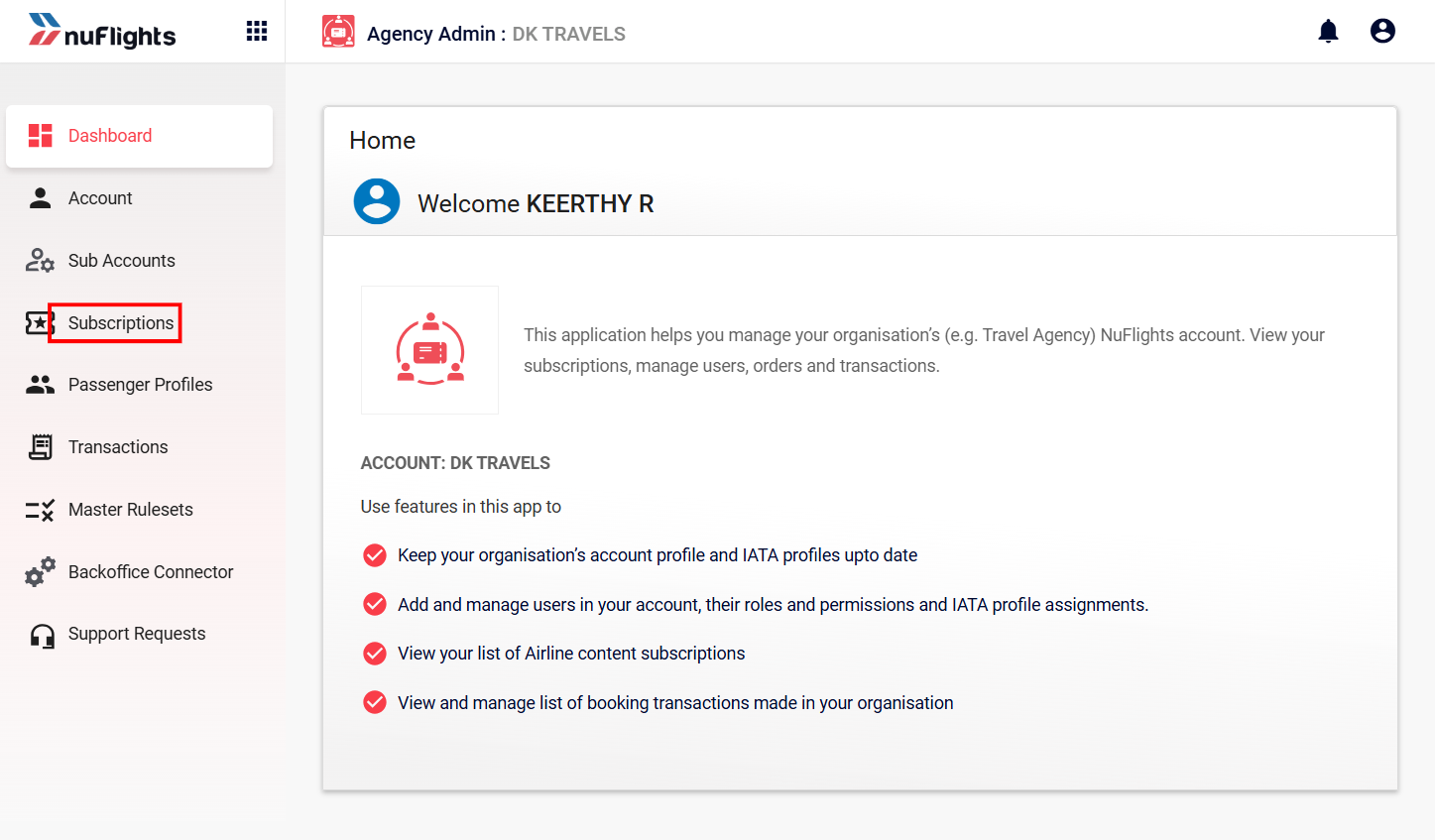
Dashboard Subscriptions Navigation
Viewing Your Subscriptions
The Subscriptions page provides a comprehensive view of all airline content connections available to your agency.
- Navigate to the Subscriptions tab in the sidebar.
- View the list of active and inactive subscriptions.
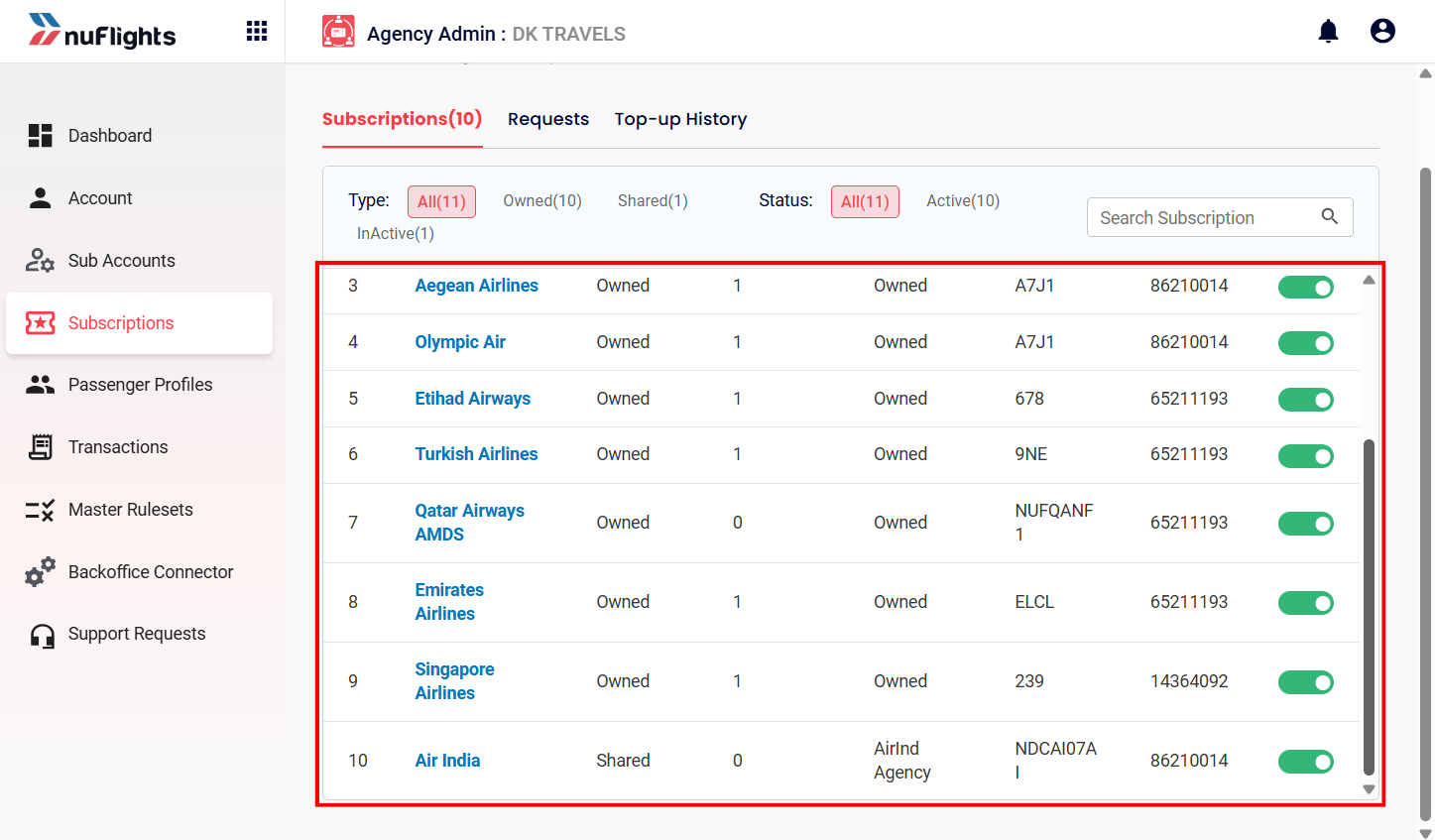
Subscriptions List
Filtering and Searching
You can filter subscriptions by their source or status:
- Owned: Subscriptions directly configured for your agency.
- Shared: Subscriptions shared with you by another agency.
- Status: View Active or Inactive subscriptions.
Use the Search Subscription bar to quickly find a specific airline or content provider.
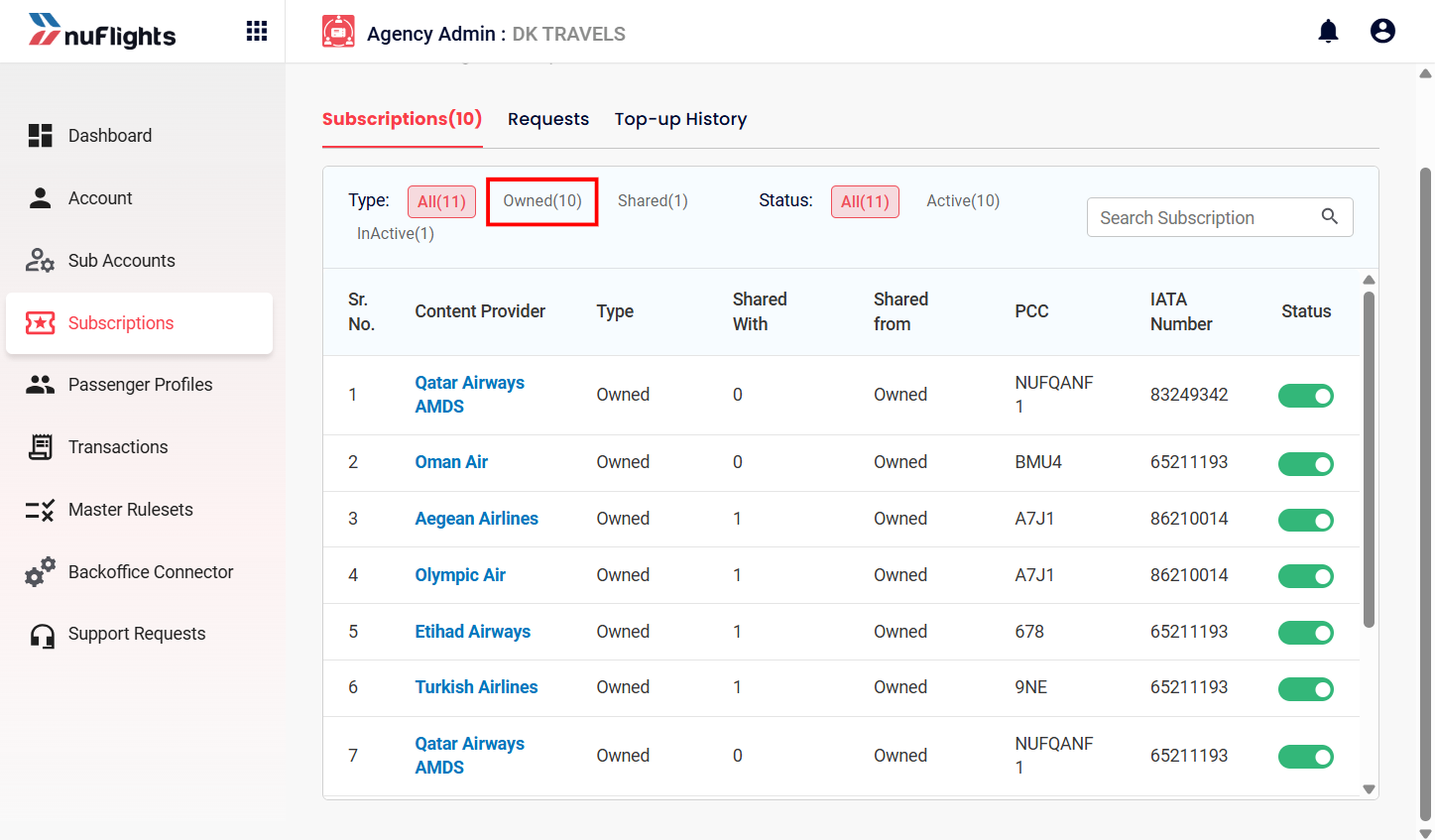
Owned Subscriptions
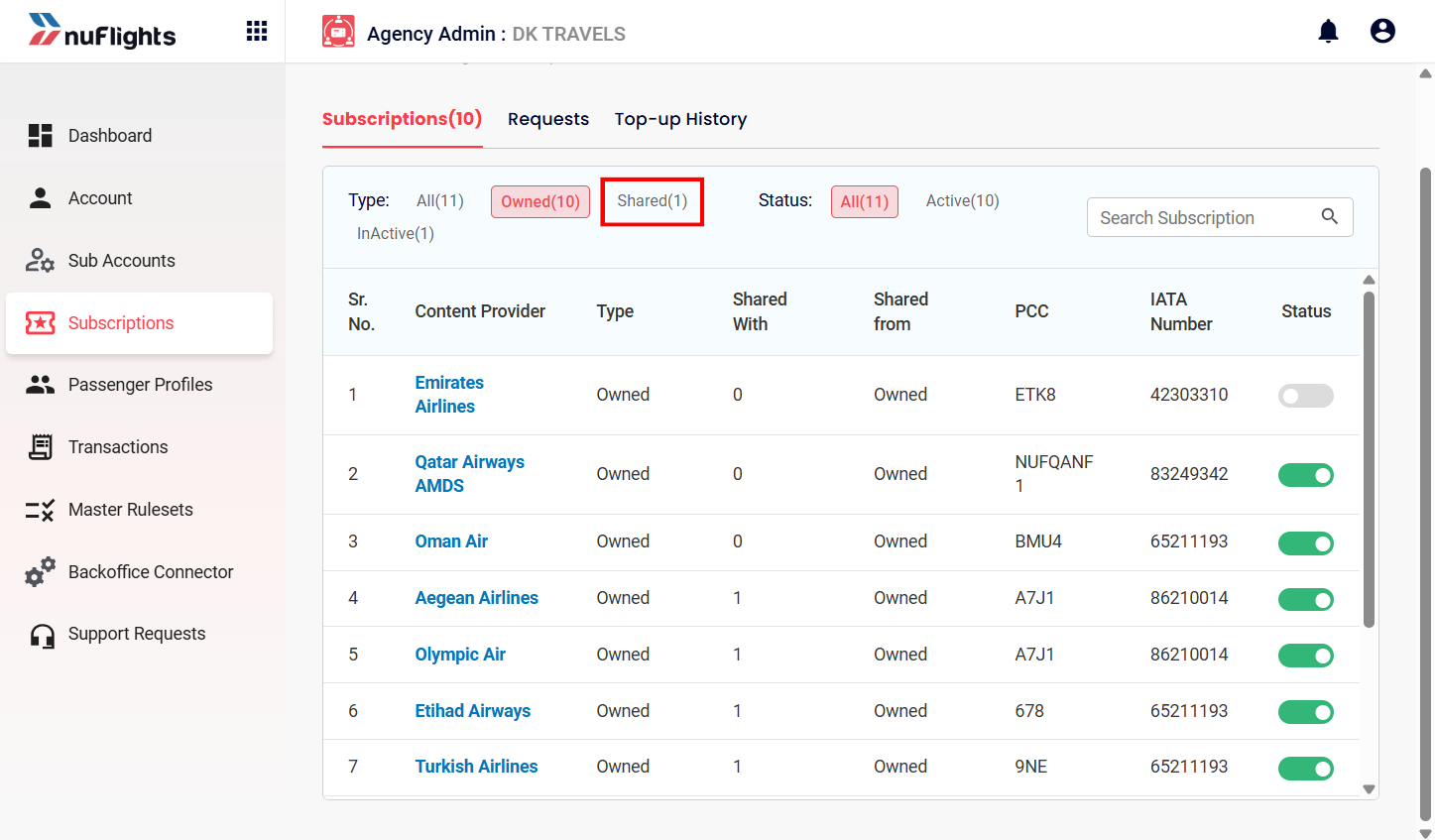
Shared Subscriptions
Requesting a Shared Subscription
If you need access to a subscription owned by another agency, you can request a sharing relationship.
- Click the Request a subscription button.
- A unique Relationship Code will be generated for your agency.
- Enter the Email ID of the agency you wish to request from.
- Add an optional note and click Send.
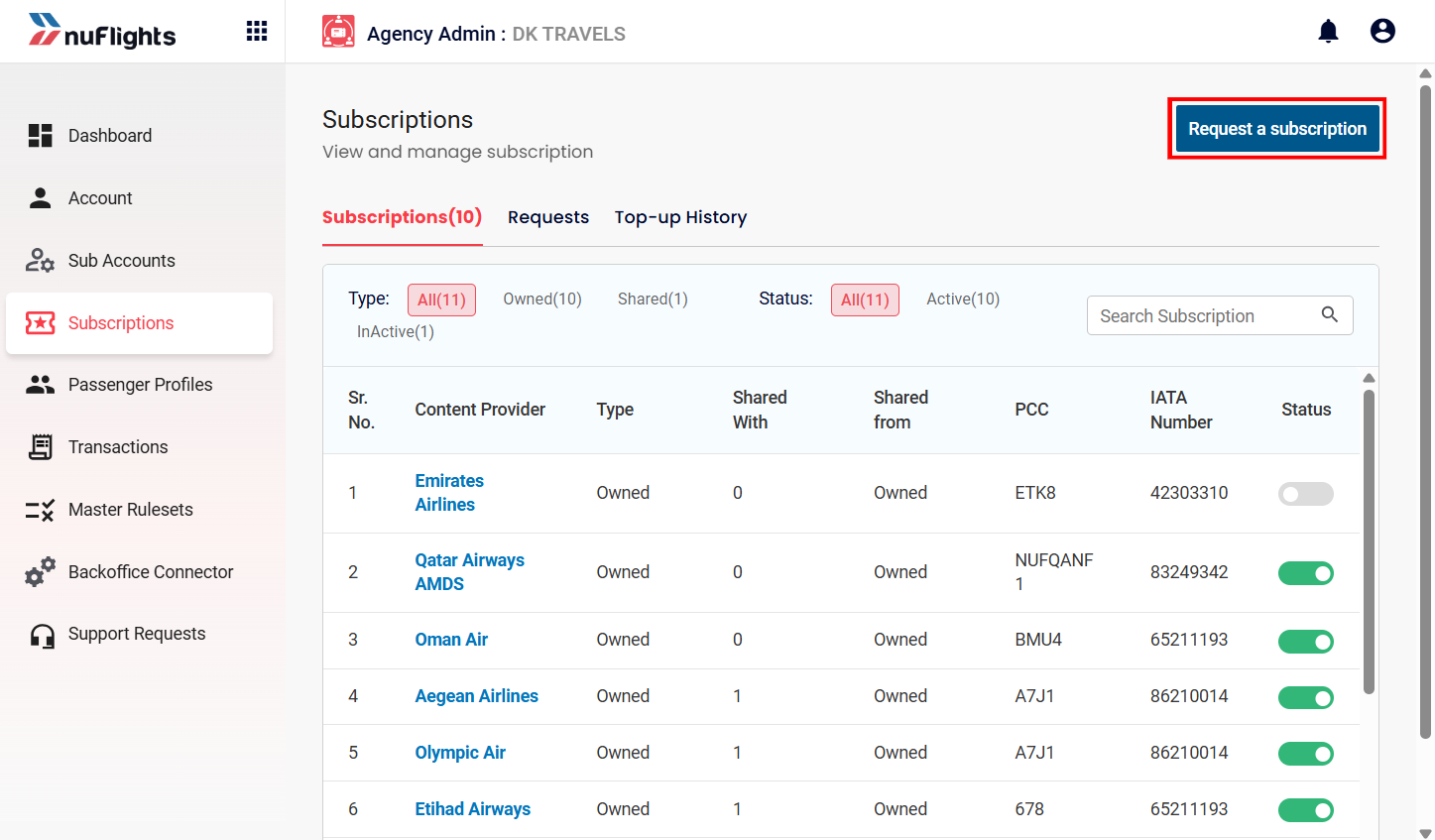
Request Subscription Button
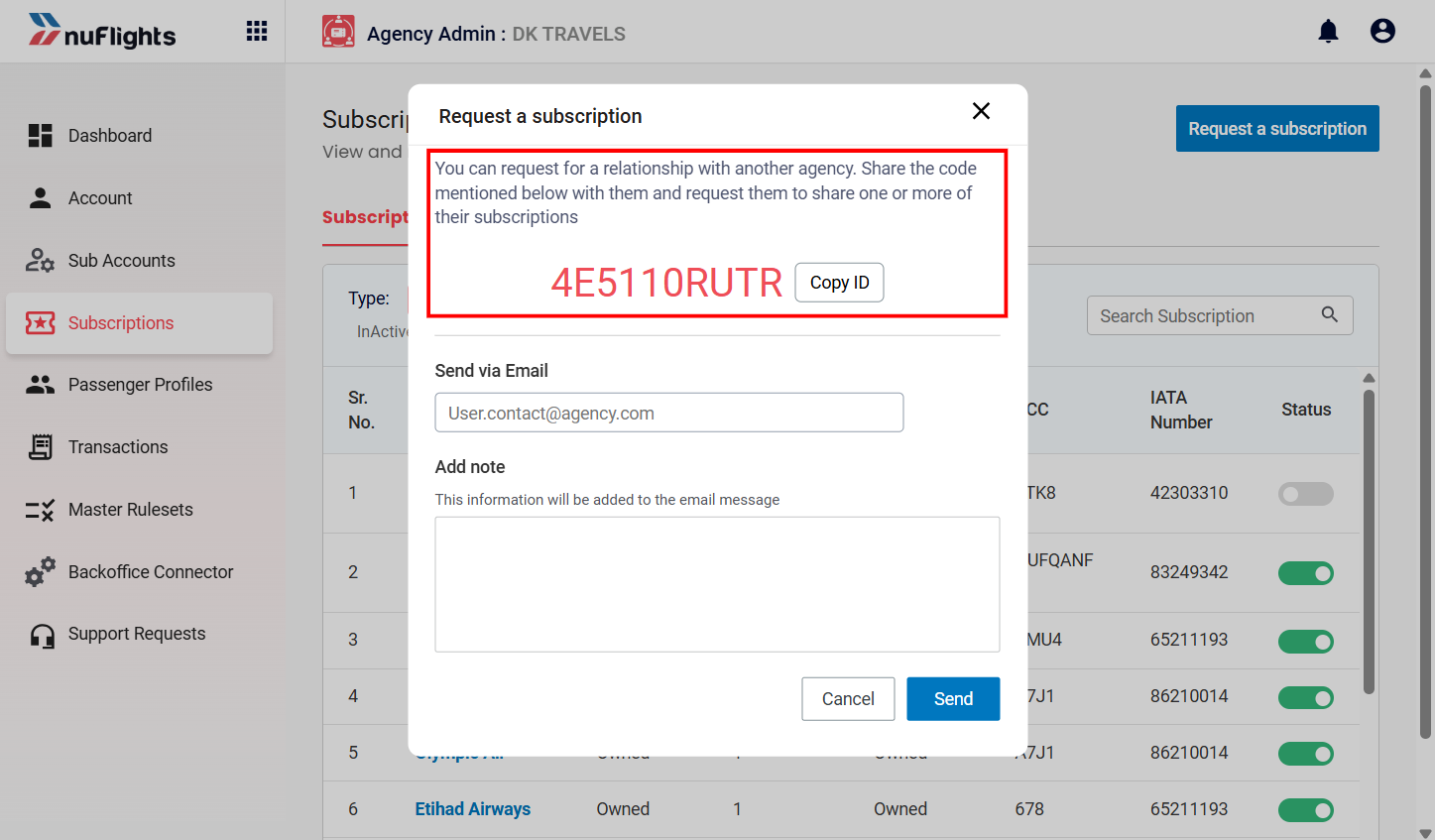
Request Subscription Modal
Tracking Requests
You can track the status of your sent and received requests in the Requests tab.
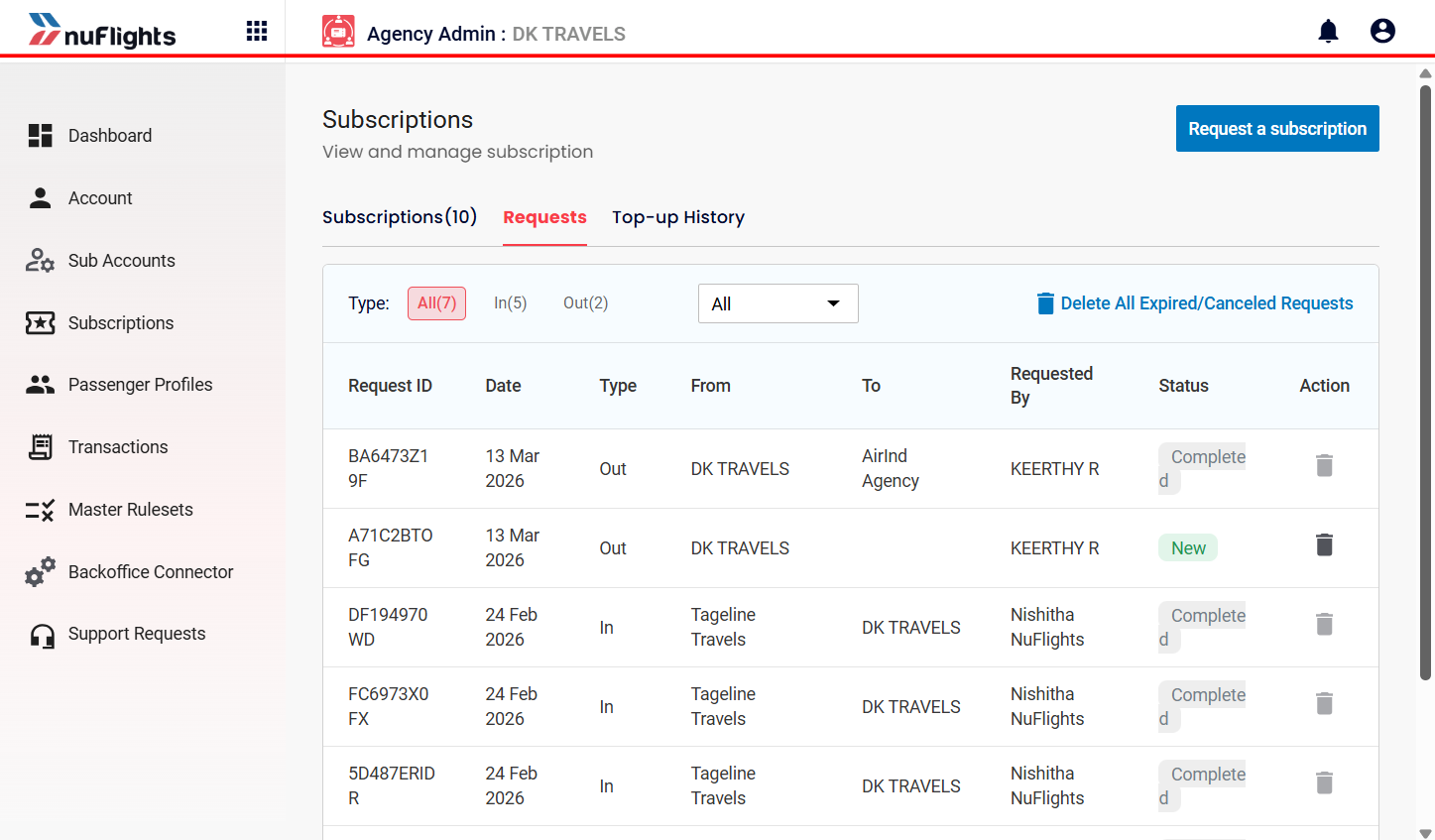
Requests Tab
Sharing Subscriptions with Sub-Agencies
Agencies that own direct airline subscriptions (Main Agencies) can directly share their active subscriptions with their sub-agencies through the Agency Admin Portal. This removes the need for sub-agencies to submit individual subscription requests.
Step-by-Step Guide
-
Access Subscriptions Log into the Agency Admin Portal and navigate to the Subscriptions tab on the left sidebar.
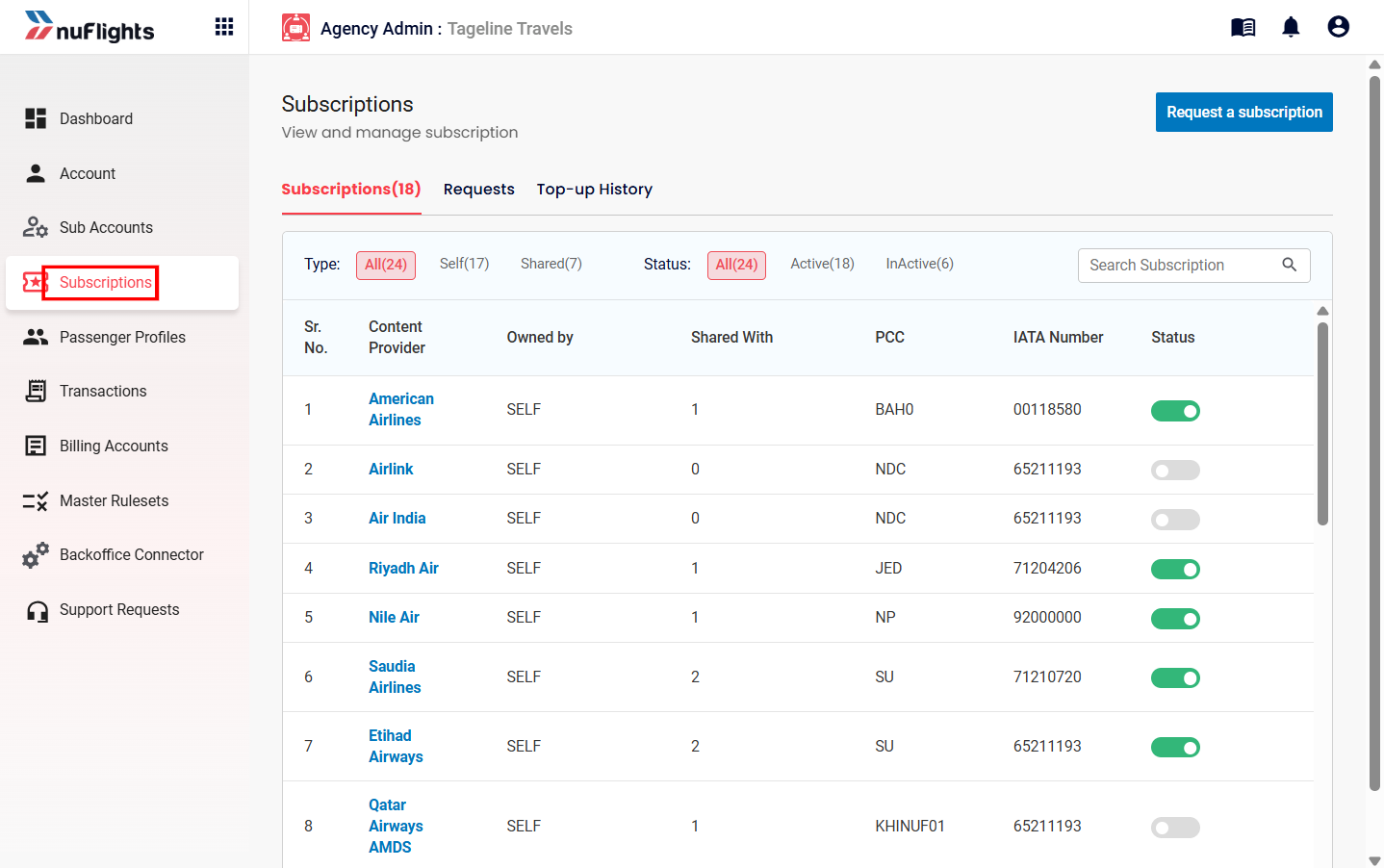
Dashboard Subscriptions Navigation
-
Select the Airline Subscription Locate the active airline subscription that you wish to share, and click on the Airline Name.
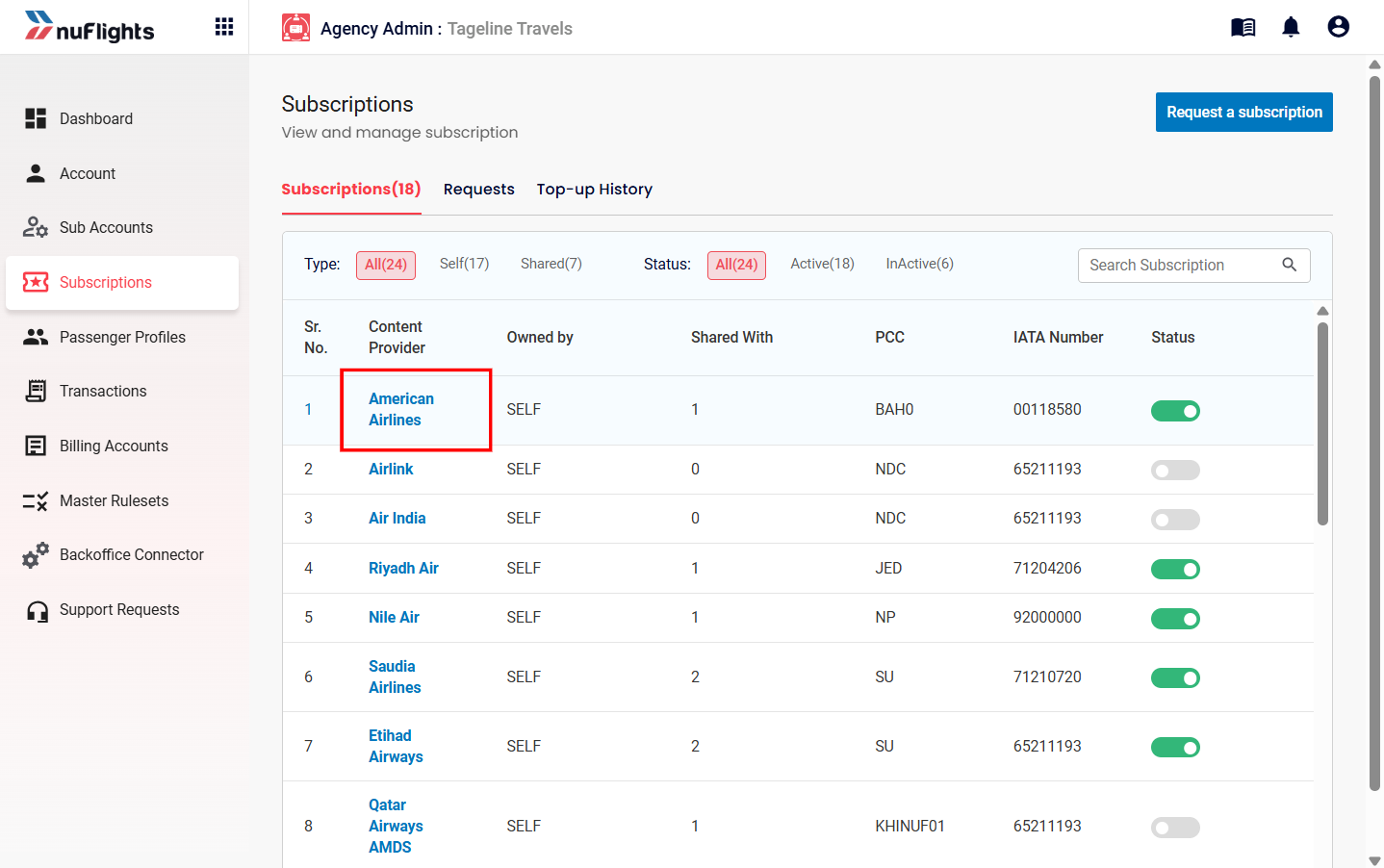
Selecting the airline name from the active list
-
Open Manage Sharing In the subscription details pop-up window, click the Manage Sharing button.
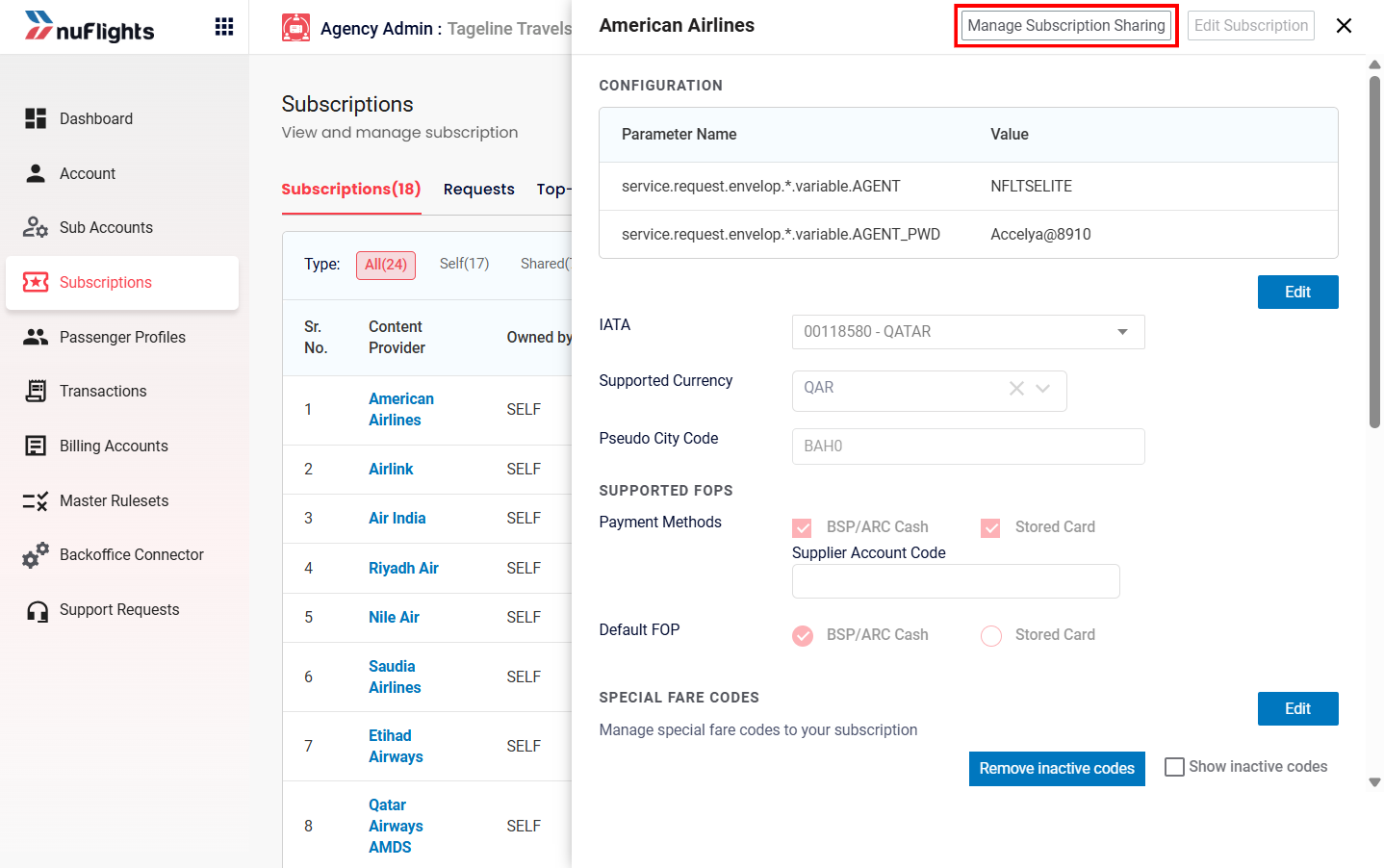
Selecting the Manage Sharing option
-
Select Sub-Agencies A new modal window will open, displaying the list of sub-agencies that have not yet been assigned the selected airline subscription.
- To share with specific sub-agencies, select the checkboxes next to their names.
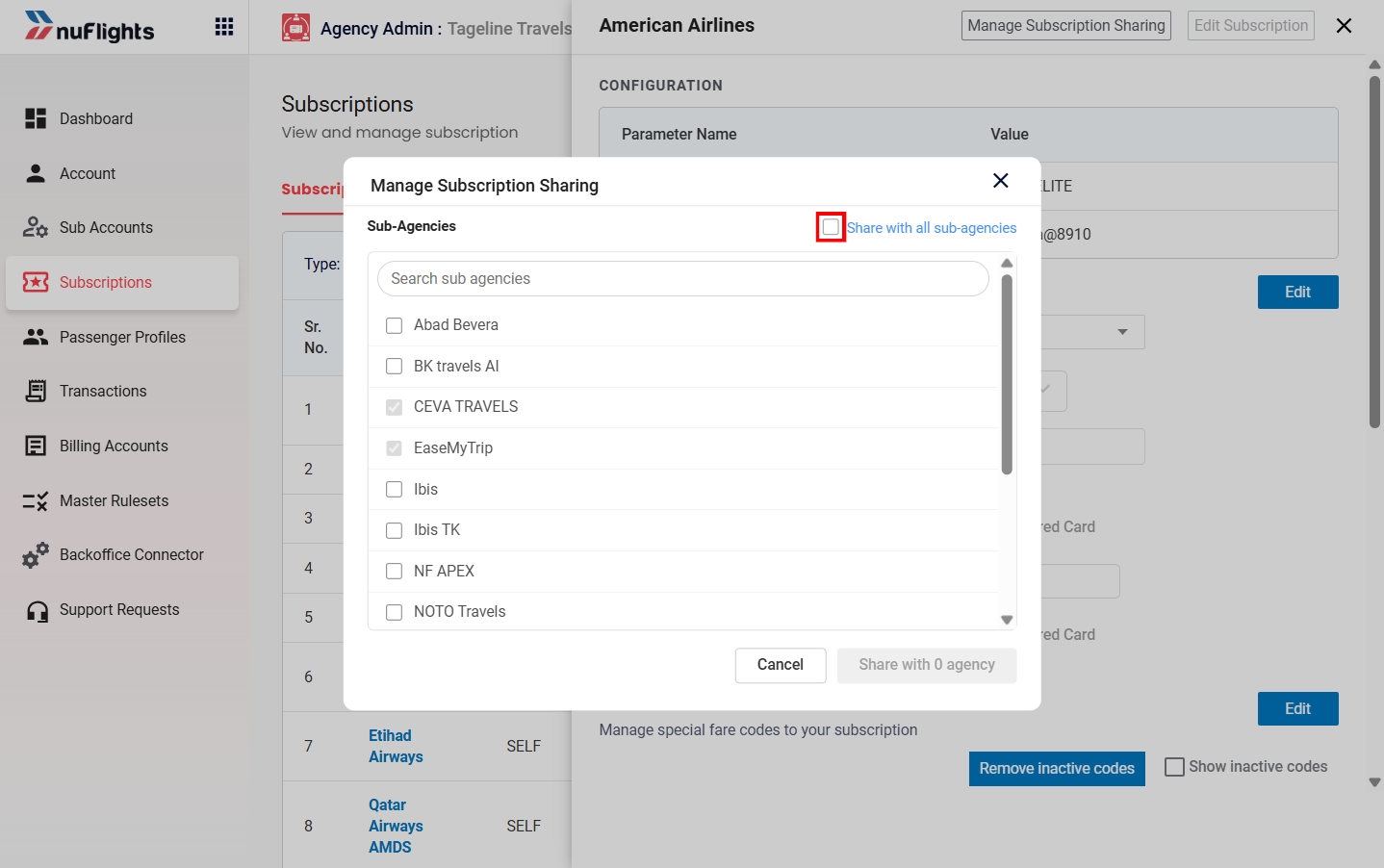
List of unassigned sub-agencies
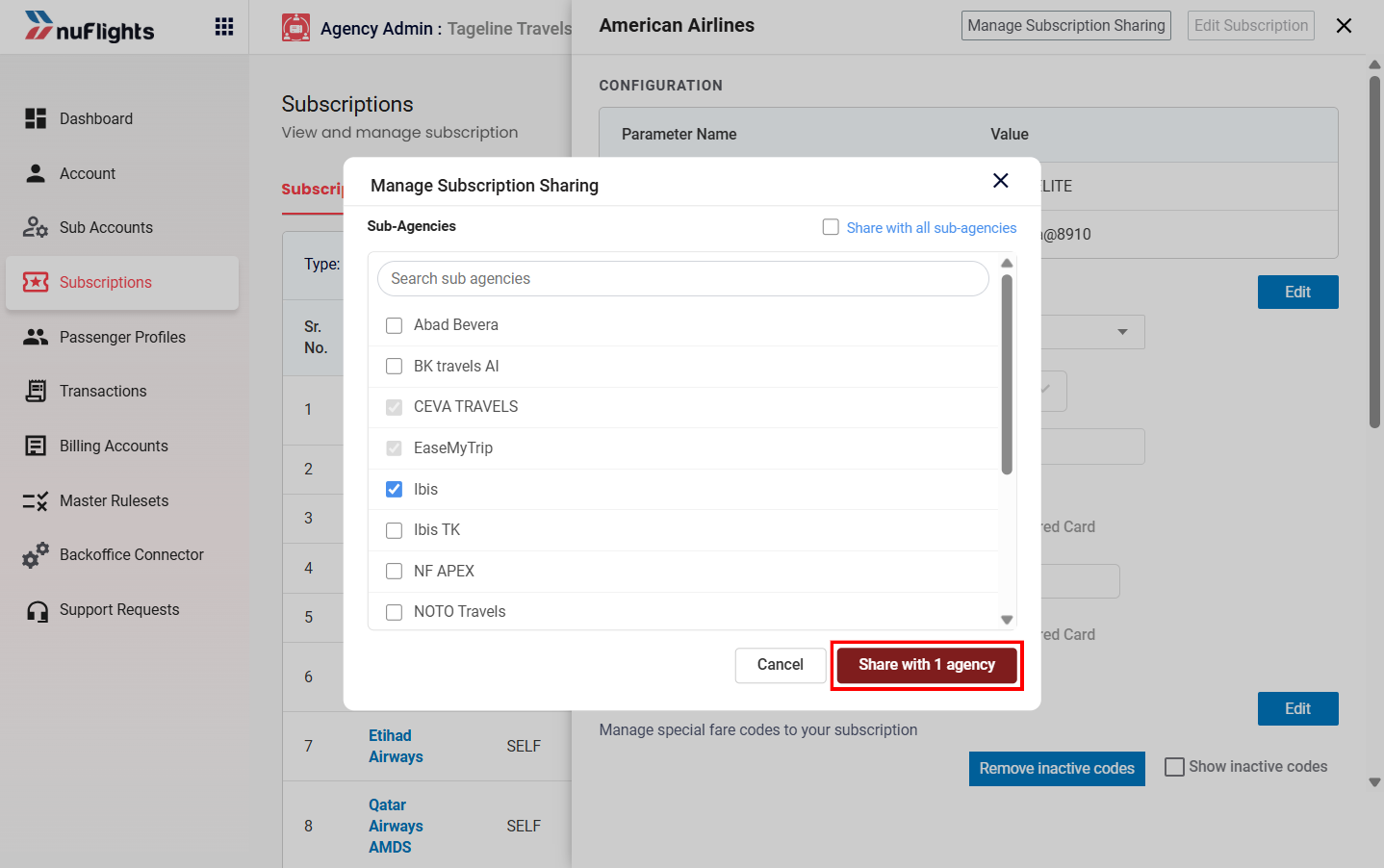
Selecting specific sub-agencies
- To share the subscription with all sub-agencies, click the Select All checkbox.
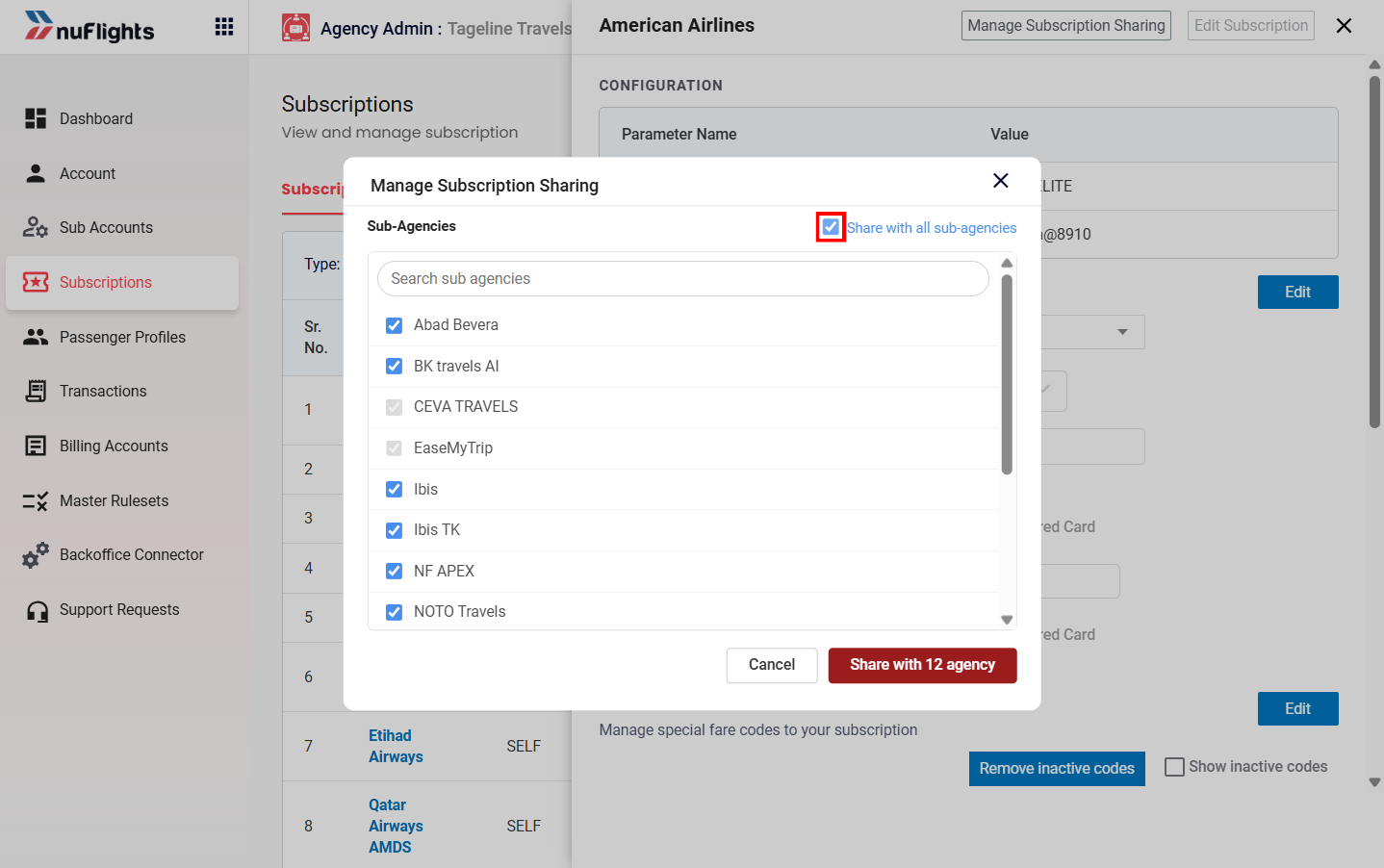
Selecting all sub-agencies using the Select All option
-
Share the Subscription Click the Share button at the bottom of the modal. The subscription will be instantly shared with the selected sub-agencies.
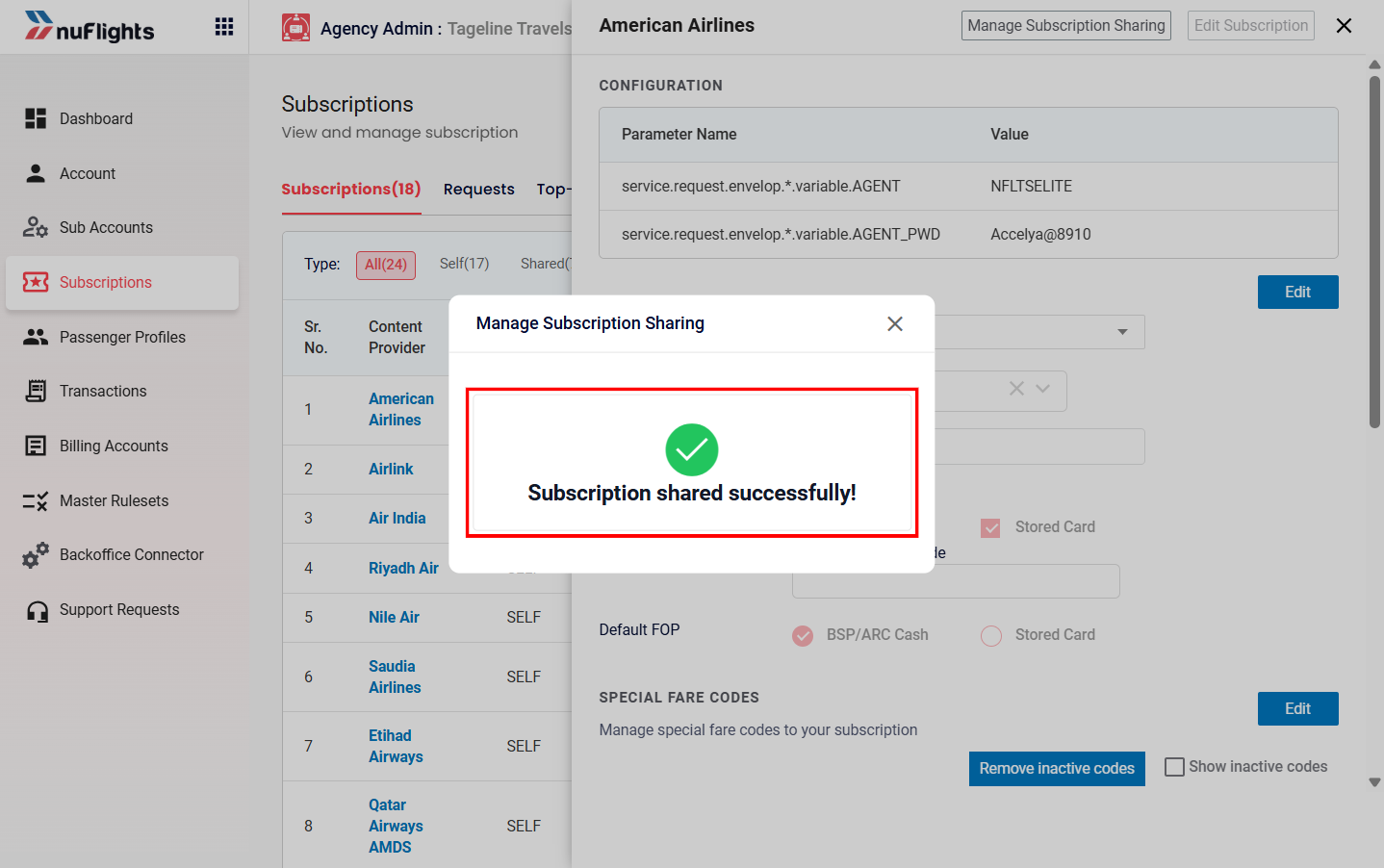
Confirming subscription sharing by clicking Share
Additional Guidance
Subscription Roles
- Main Agency: The agency that owns the subscription and shares it.
- Sub Agency: The agency receiving the shared subscription.
- Sharing Chains: Subscription sharing can be extended further, where a sub-agency can potentially share access with another agency if permitted.
Top-up History
If your agency is acting as a Main Agency, you can track the balance and top-up history for shared subscriptions in the Top-up History tab.
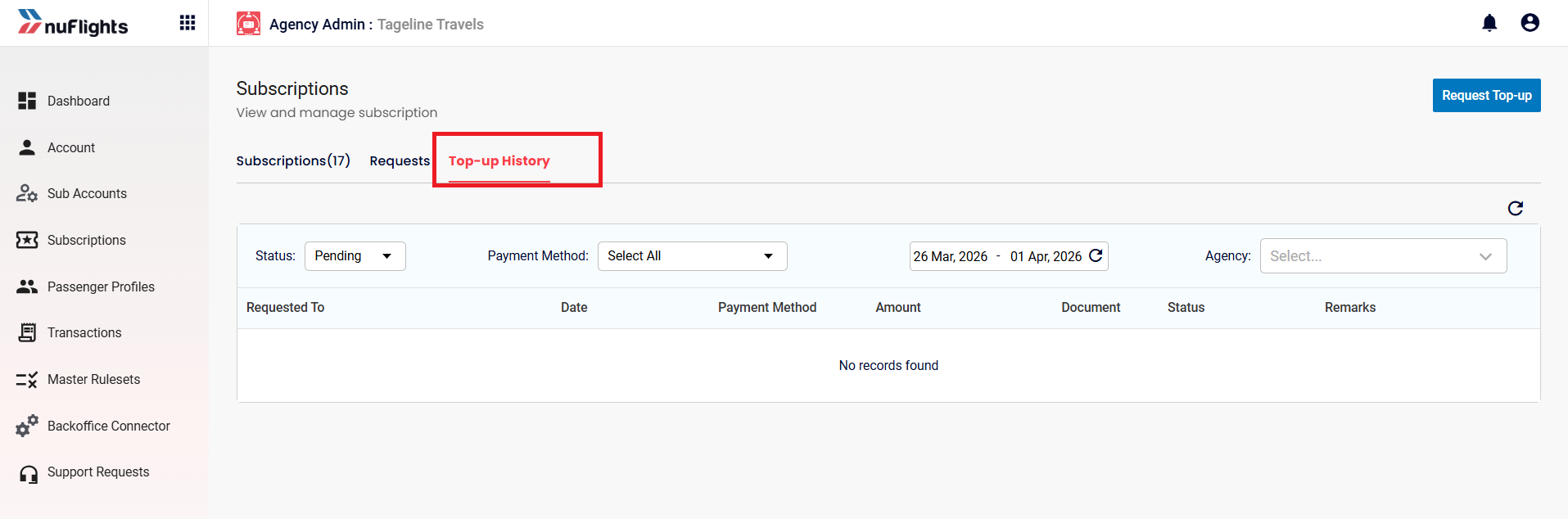
Top-up History
Financial Oversight
- Credit Control: Manage sub-agency credit limits, monitor available balances, and view transaction history. Click any reference to Credit Control throughout the system to be redirected to this management page.