

Service Fee and Commission Configuration
Overview
The Service Fee and Commission Configuration feature lets a Main Agency define charging and reward rules for each of its Sub Accounts. These rules are evaluated automatically at the time of ticketing, reissue, and void, and the resulting entries appear in the Statement of Account (SOA) for both the Main Agency and the Sub Account.
There are two independent rules per Sub Account:
- Service Fee — debits the Sub Account for each ticket issued (revenue for the Main Agency).
- Commission — credits the Sub Account for each ticket issued (cost to the Main Agency).
Either, both, or neither can be enabled on any given Sub Account.
Where to find it
Inside Agency Admin, open the Sub Accounts menu and select the sub agency to configure. On the sub agency's page, open the Account tab and scroll down to the SERVICE FEE SETUP and COMMISSION SETUP sections. The two sections are configured independently.
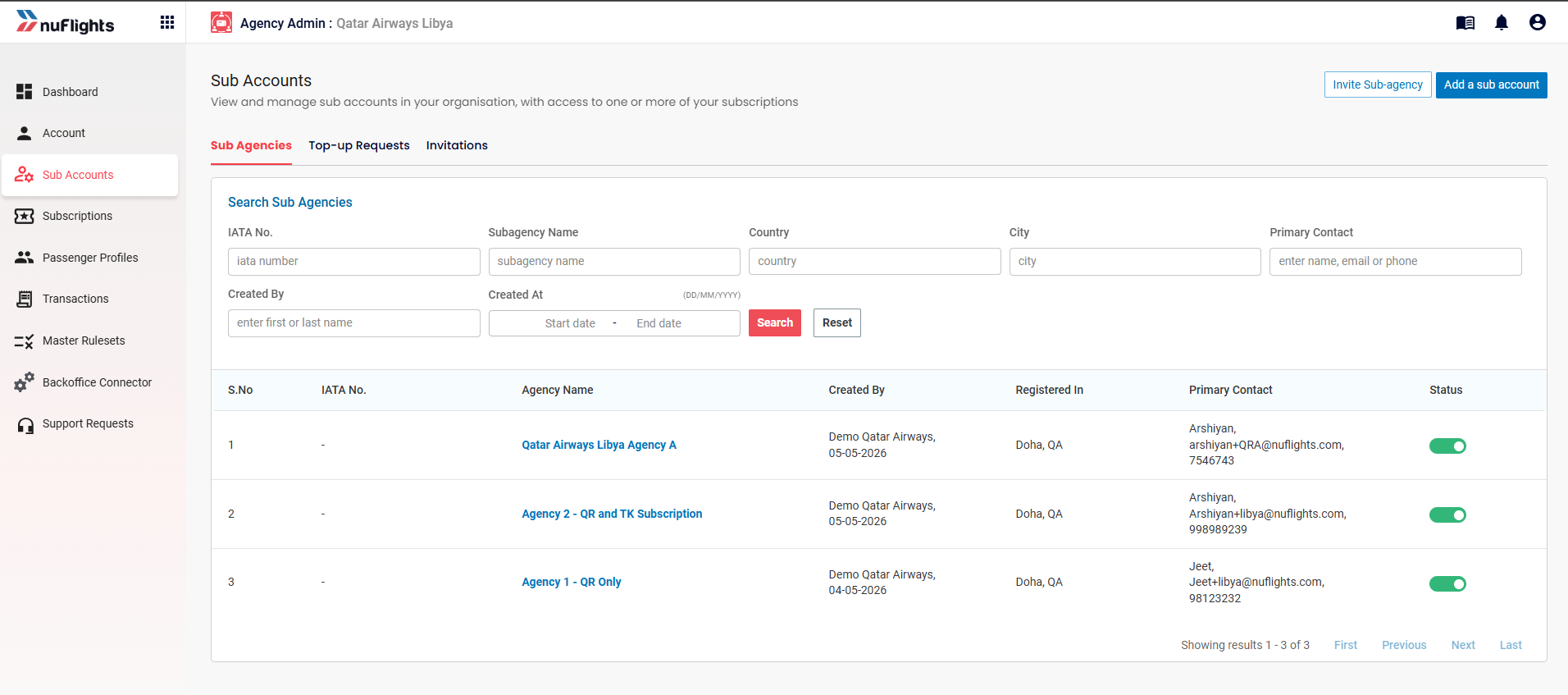
Sub Accounts — list of sub agencies
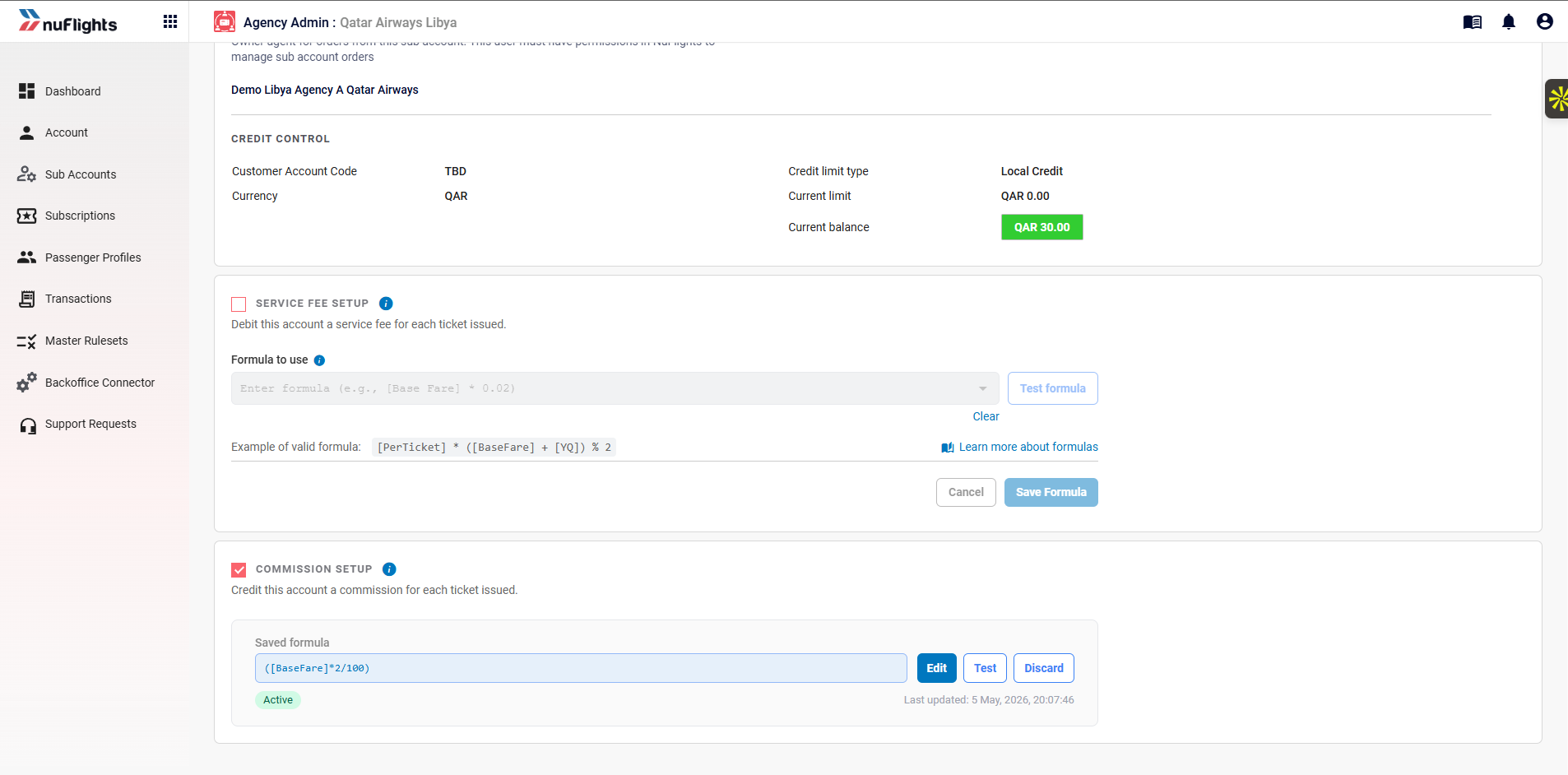
Sub agency Account tab — SERVICE FEE SETUP and COMMISSION SETUP sections
Setting up a rule
The flow is identical for both Service Fee and Commission. The steps below use Service Fee as the example.
Step 1 — Enable the section
Check the SERVICE FEE SETUP checkbox to activate the section. While unchecked, the rule is inactive and no SOA entries are generated regardless of what is saved in the formula field.
Step 2 — Write the formula
Enter the formula expression in the Formula to use field. A formula is a math expression made up of predefined tokens and arithmetic operators (+, -, *, parentheses, and % for percentages).
An example formula is shown below the field for reference: [PerTicket] * ([BaseFare] + [YQ]) % 2.
A complete reference of all available tokens is accessible via the Learn more about formulas link to the right of the example.
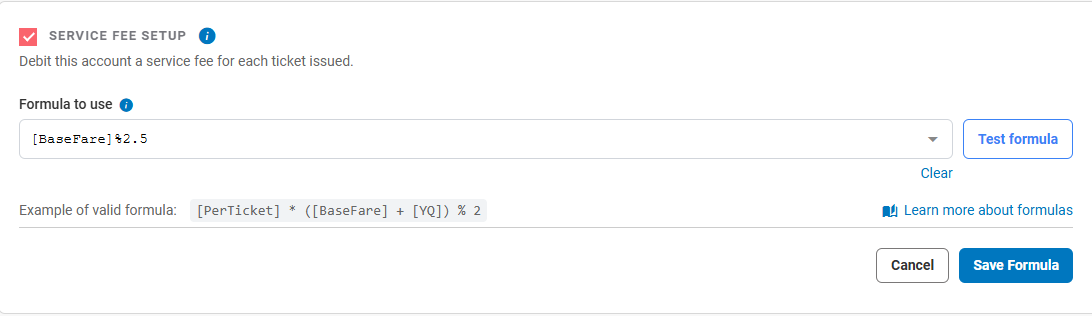
Formula to use — edit mode with sample formula
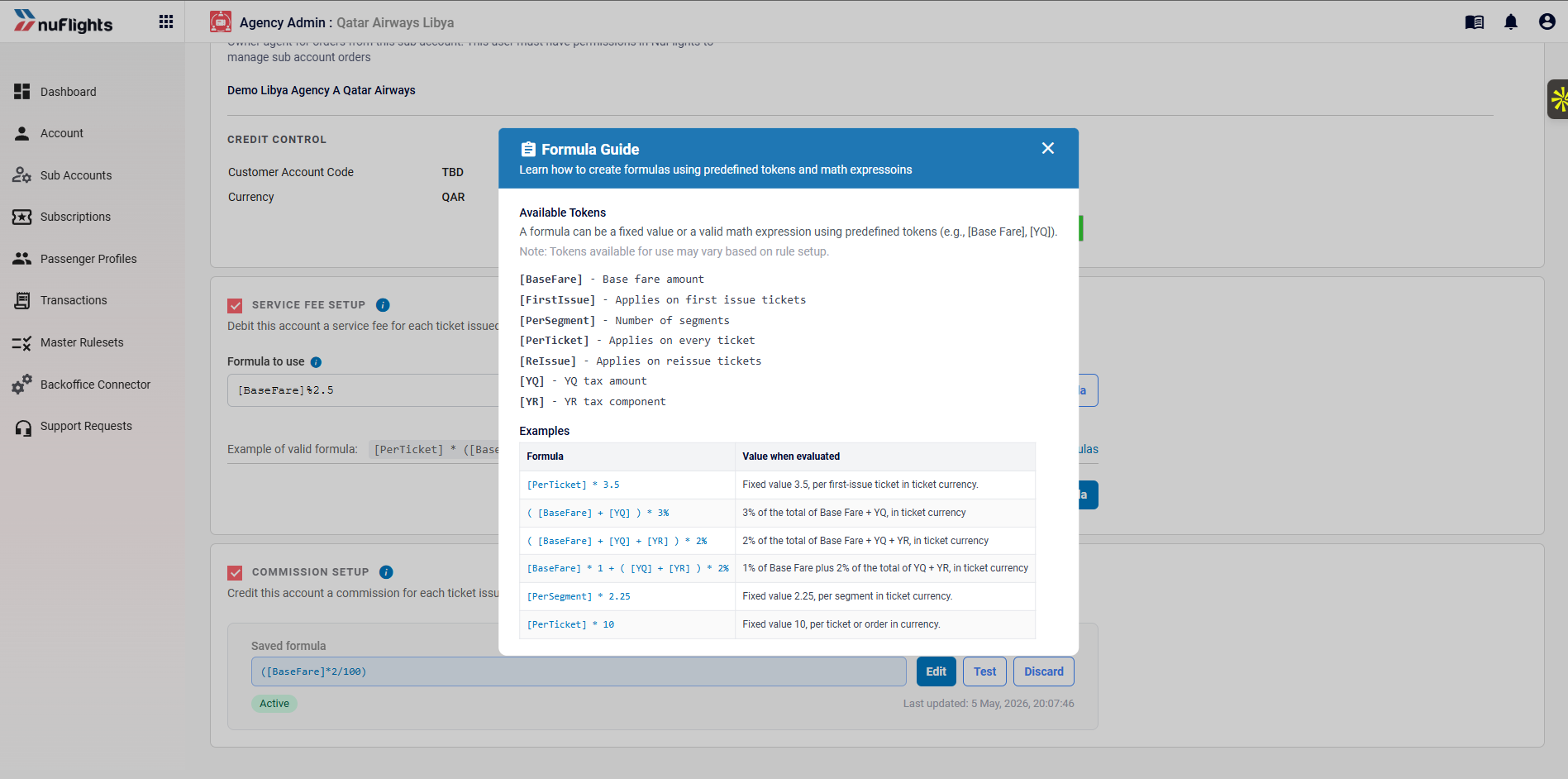
Formula Guide — available tokens and example formulas
Step 3 — Test the formula
Click the Test formula button to validate the formula's syntax and preview the calculated result with sample values. A popup appears with editable fields for each token the formula uses, allowing you to verify the math against a known scenario.
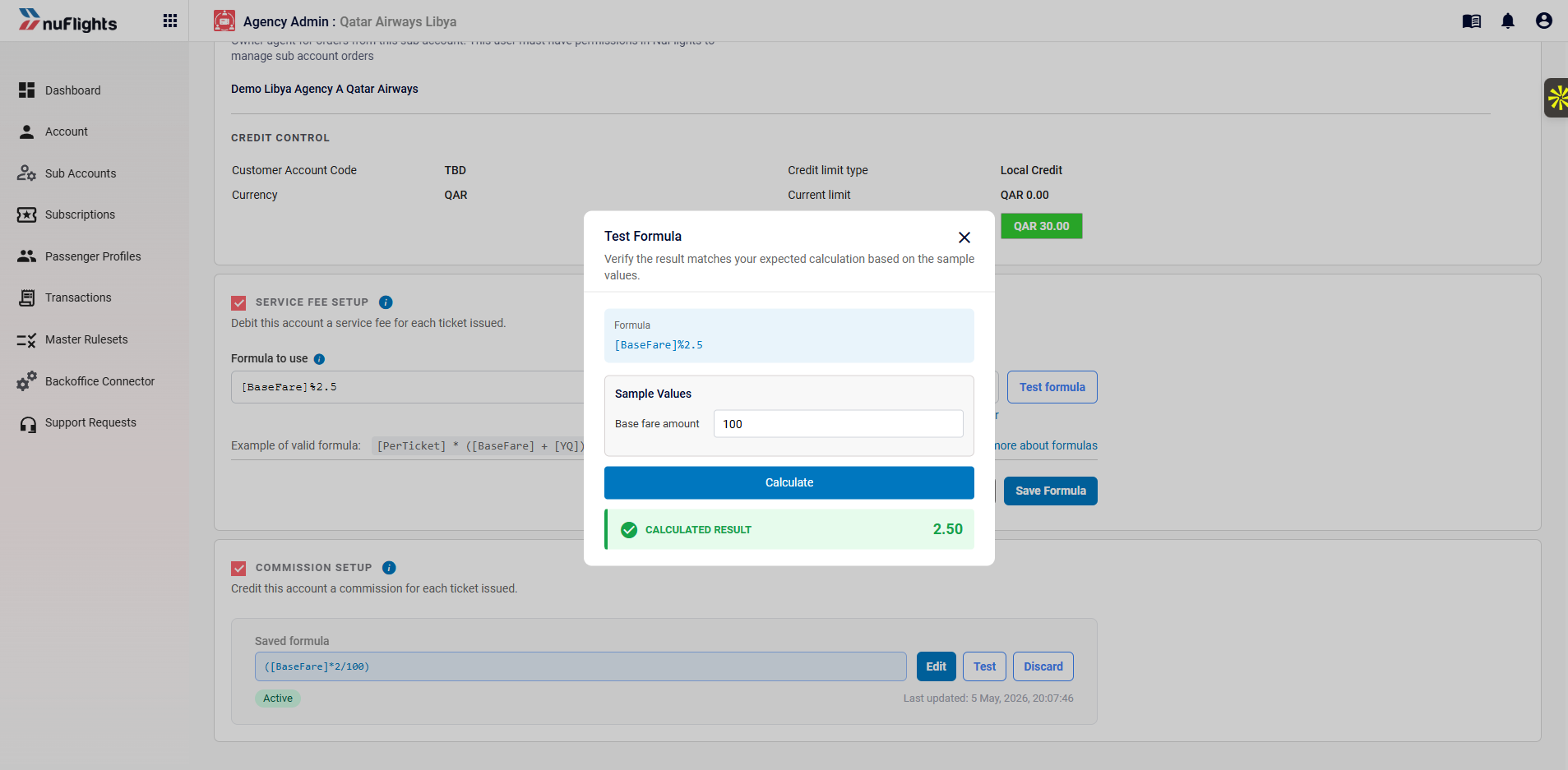
Test Formula — sample values and calculated result
The Save Formula button remains disabled until the formula has been tested successfully. If the formula is edited after testing, Save Formula is disabled again and a re-test is required.
Step 4 — Save the formula
Once the formula has been tested, click Save Formula. A confirmation prompt appears showing the formula to be saved before you confirm.
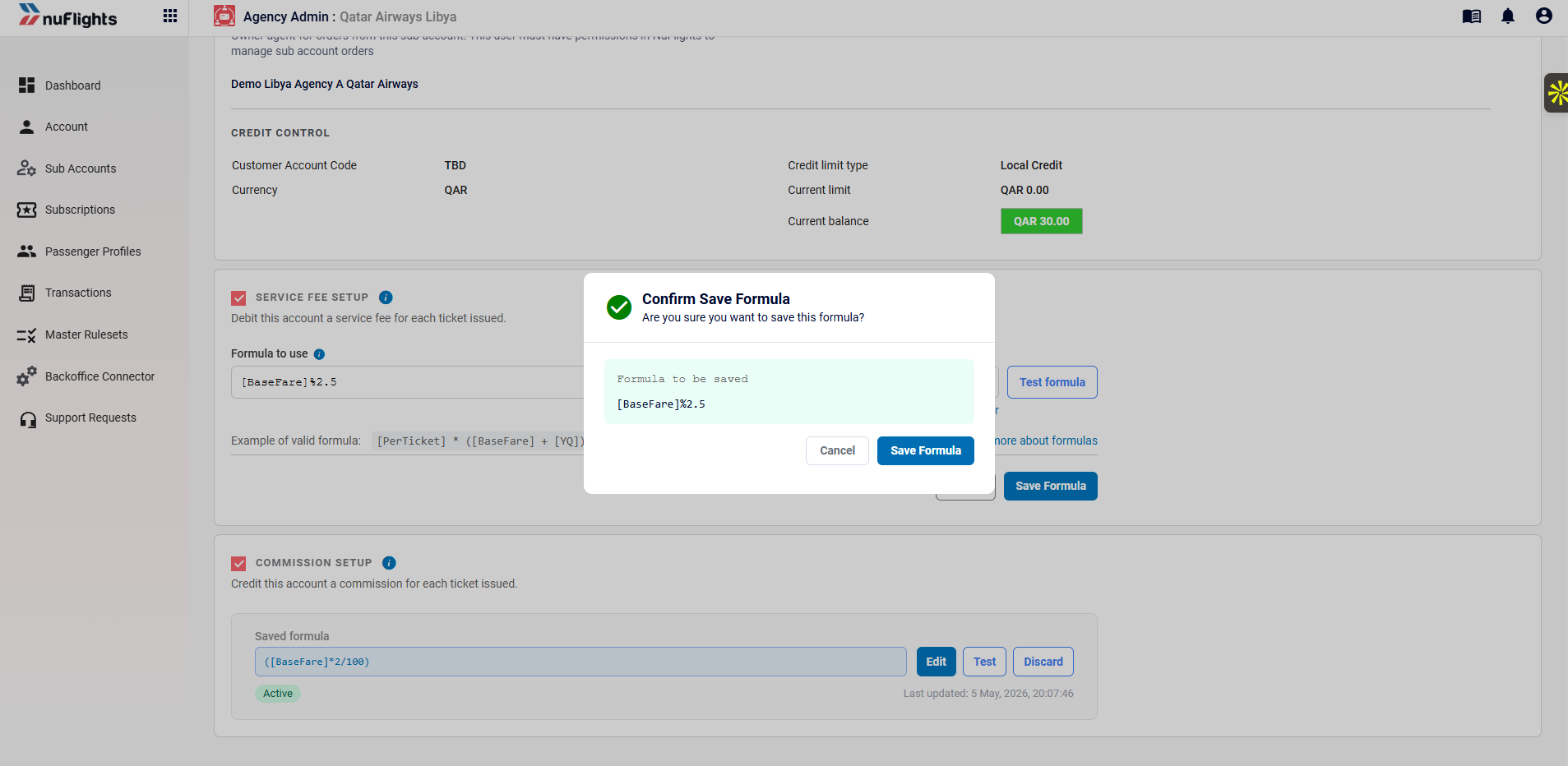
Confirm Save Formula
After saving, the section collapses into a summary view showing the saved formula in a read-only field, an Active status badge, and the timestamp of the last update.
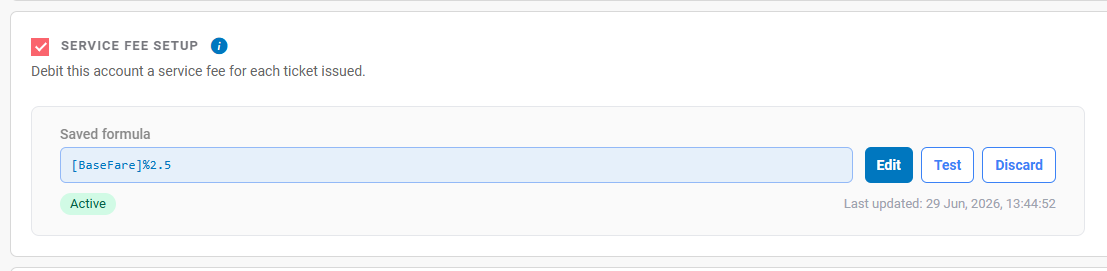
Saved formula — Active state with Edit, Test, and Discard buttons
Tokens
The following tokens are supported in formula expressions.
| Token | Title | Meaning |
|---|---|---|
[BaseFare] | Base fare amount | The base fare amount of the ticket |
[YQ] | YQ tax amount | The YQ tax component of the ticket |
[YR] | YR tax amount | The YR tax component of the ticket |
[FirstIssue] | Applies on first issue | Evaluates to 1 when the ticket is first issued, 0 otherwise |
[ReIssue] | Applies on reissue | Evaluates to 1 when the ticket is reissued, 0 otherwise |
[PerSegment] | Number of segments | Number of segments on the ticket |
[PerTicket] | Applies on every ticket | Always evaluates to 1, used for fixed per-ticket amounts |
[FirstIssue] and [ReIssue] are mutually exclusive at any point in time. On void, they reflect the last state of the ticket prior to cancellation.
Example formulas
| Use case | Formula |
|---|---|
| Flat 10 QAR on first issue | [FirstIssue] * [PerTicket] * 10 |
| Flat 5 QAR on reissue | [ReIssue] * [PerTicket] * 5 |
| 5% of base fare on first issue | [FirstIssue] * [BaseFare] % 5 |
| 2% of base fare on reissue | [ReIssue] * [BaseFare] % 2 |
| 5% of (base fare + YQ) on first issue | [FirstIssue] * ([BaseFare] + [YQ]) % 5 |
| 2% of (base fare + YQ + YR) on first issue | [FirstIssue] * ([BaseFare] + [YQ] + [YR]) % 2 |
| 1% of base fare plus 2% of (YQ + YR) on first issue | [FirstIssue] * ([BaseFare] % 1 + ([YQ] + [YR]) % 2) |
| 2 QAR per segment on first issue | [FirstIssue] * [PerSegment] * 2 |
Statement of Account
When a Service Fee or Commission rule is active, the corresponding SOA entries are written automatically when a ticket is issued, reissued, or voided.
Two new transaction types appear in the SOA:
- COMMISSION — credit for the Sub Account, debit for the Main Agency
- FEE — debit for the Sub Account, credit for the Main Agency
Each entry shows the originating ticket number and PNR in the Transaction column, with the sector information in the Pax & Sector column.
A calculation details tooltip is available on hover over the info icon next to each entry, showing the evaluated formula and component values used. This detail does not appear in downloaded exports.
Behaviour on reissue and void
The same formula runs on every transaction type. The token values change based on the transaction context.
Reissue
The formula evaluates again with [ReIssue] = 1 and [FirstIssue] = 0. A new SOA entry is written for any non-zero result.
Void
A void automatically reverses the original Service Fee and Commission in full. The agent does not need to enter any values. The reversal entries appear as separate rows on the SOA.
Editing a rule
Click the Edit button next to the saved formula. The section expands back into edit mode with the current formula pre-populated. The Test formula step must be repeated before the updated formula can be saved.
Disabling and removing a rule
Disabling: Uncheck the section's checkbox. The rule becomes inactive but the saved formula is preserved. Re-checking the box reactivates the existing formula without needing to re-enter it.
Removing: Click the Discard button next to the saved formula. A confirmation prompt appears before the formula is permanently deleted.
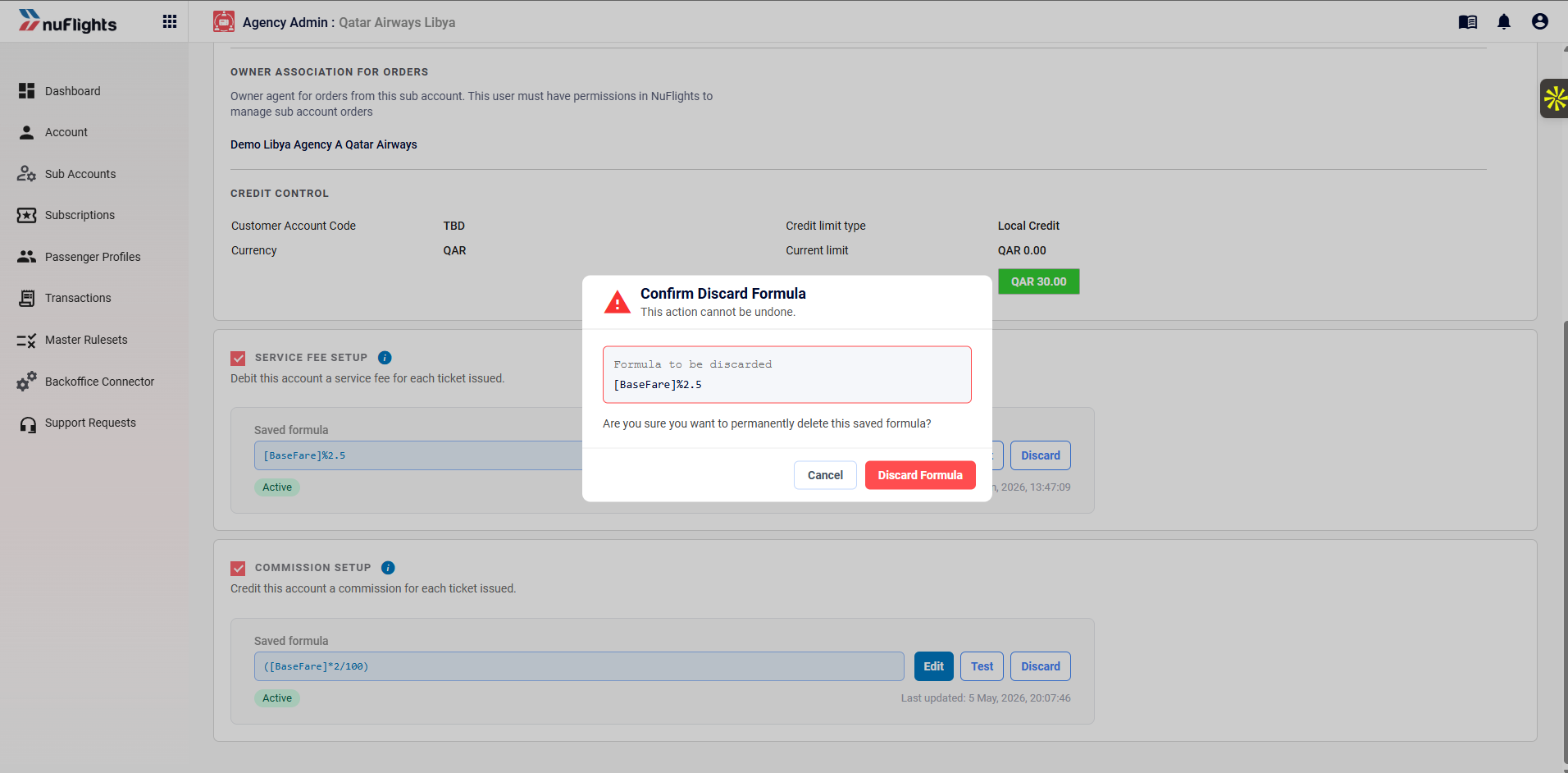
Confirm Discard Formula — this action cannot be undone
Important notes
Conjunction tickets
When a passenger's journey spans multiple ticket documents (a main ticket plus one or more conjunction tickets), the formula is evaluated only on the ticket that carries the fare and segment data. Conjunction tickets that contain no fare and no segments are skipped to prevent duplicate or partial fee entries on the SOA.
Currency rounding
Calculated amounts are rounded to the nearest decimal place using standard rounding (not round-up):
- 2 decimals for most currencies (QAR, USD, EUR, etc.)
- 3 decimals for OMR, BHD, and KWD
Agency hierarchy
When a ticket is issued at a lower tier of the agency hierarchy (for example, a Sub-Sub Agency under a Sub Agency under a Main Agency), the rules cascade up the chain. Each tier's Sub Account configuration applies independently to its own relationship — the Sub-Sub Agency's rule applies to its relationship with the Sub Agency, and the Sub Agency's own rule applies to its relationship with the Main Agency. Each tier uses the rate configured on its own Sub Account, not the rate from the tier below.
Balance impact
A Service Fee may push the Sub Account's balance below zero. Issuance is not blocked when this happens; the negative balance is allowed by design.
Activation timing
Changes to a rule take effect from the moment they are saved. Tickets issued before the change retain the formula that was active at the time of their sale, including for any subsequent void.